
Hello Coder, and welcome to the another blog post. In this blog post we will create a filterable image gallery using HTML, CSS and JavaScript. Do you know image gallery is play important role in our website it’s show the multiple category in single page so this is what we are going to learn today and without waste time let’s start first.
Every website needs a simple but useful image gallery and they can add more category in single web page so you can easily create this using my step by step guide. First of all let’s understand layout of folder.
- First create a folder in your pc and rename with any name. Ex. (filterable image gallery)
- After create a folder inside the folder like index.html , style.css, index.js
- And create a another folder so that pick the image
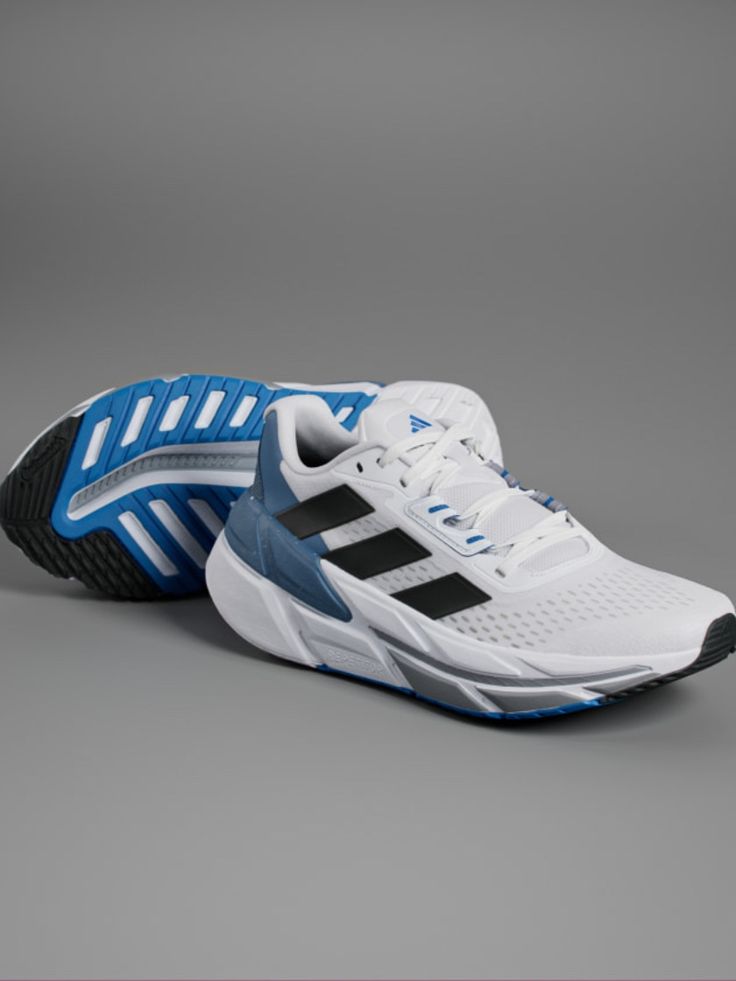
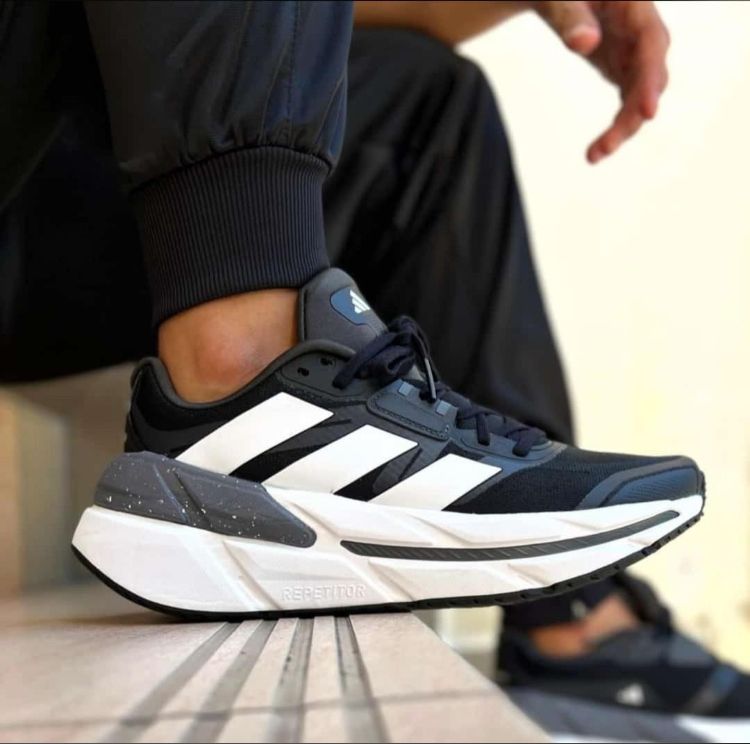
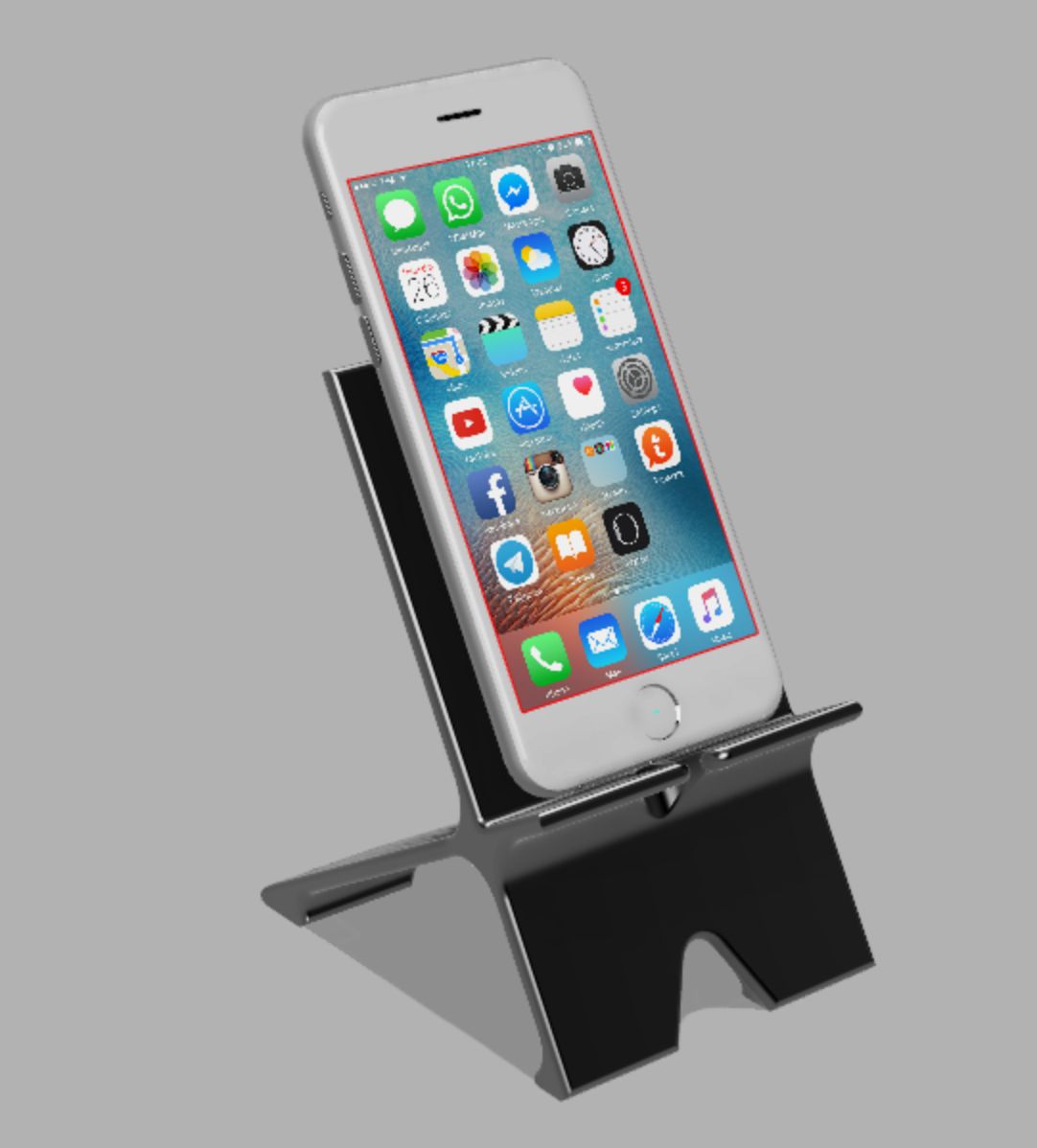
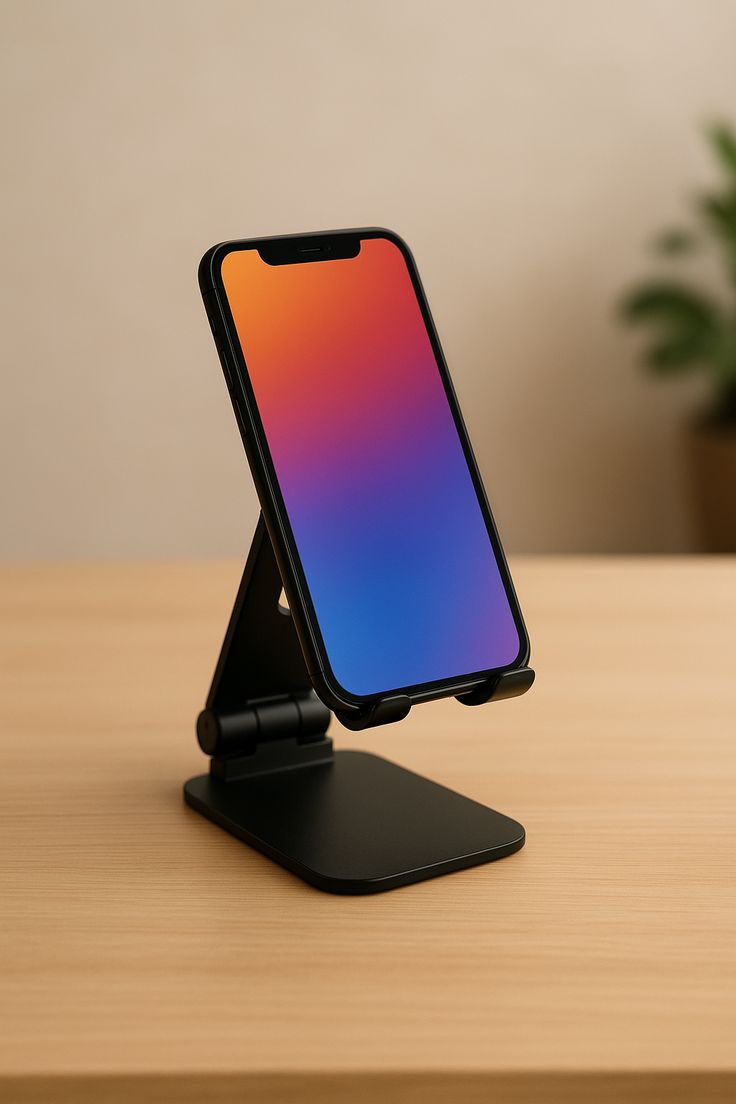
Download all image below


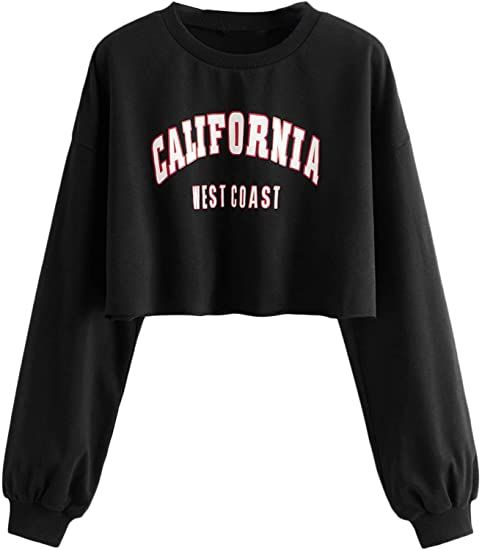
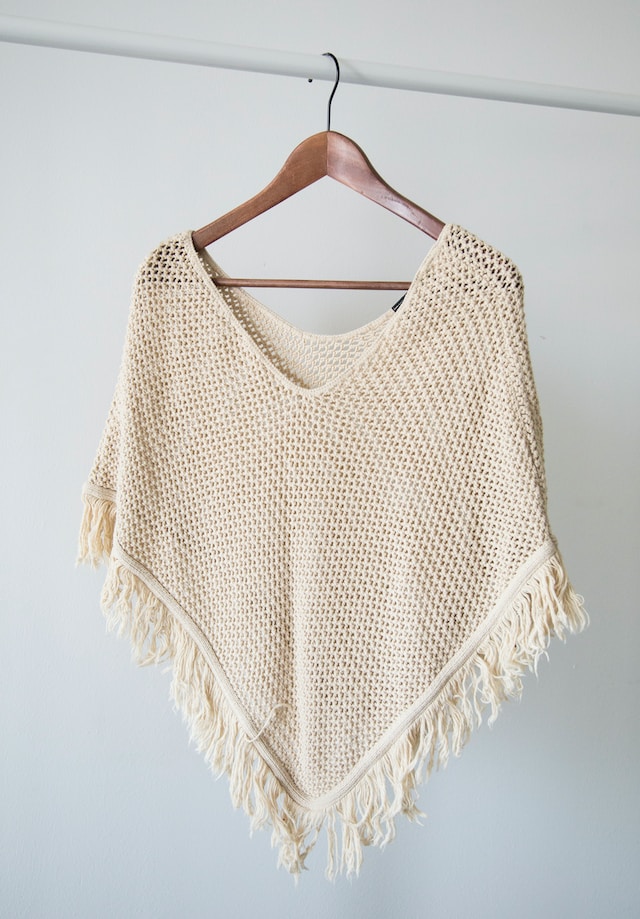

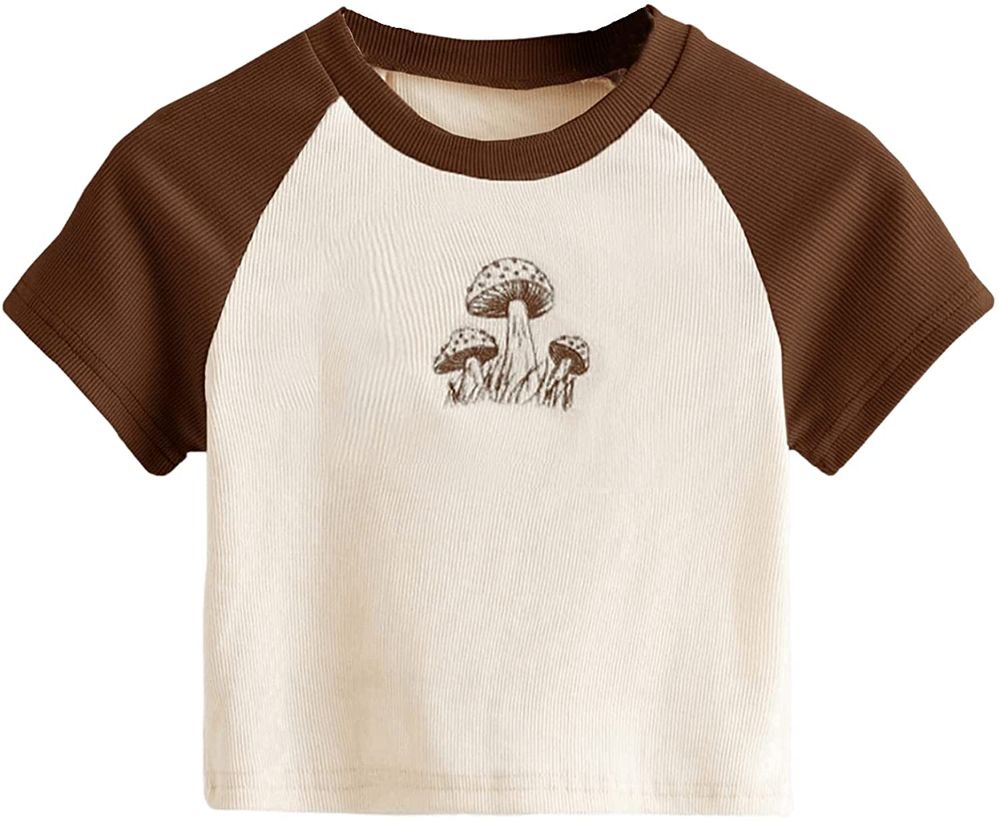
Copy code and paste in HTML file
<!DOCTYPE html>
<html lang="en">
<head>
    <meta charset="UTF-8">
    <meta name="viewport" content="width=device-width, initial-scale=1.0">
    <title>Search Filter</title>
    <link rel="stylesheet" href="style.css">
    <link href="https://fonts.googleapis.com/css2?family=Cal+Sans&display=swap" rel="stylesheet">
</head>
<body>
    <div class="container">
        <!-- Filter Button -->
         <div class="filter-buttons">
            <button class="active" data-name="all">Show All</button>
         <button data-name="phones">Phones</button>
         <button data-name="clothes">Clothes</button>
         <button data-name="shoes">Shoes</button>
         </div>

         <!-- Images Card -->
          <div class="filterable-cards">

            <div class="card" data-name="phones">
                <img src="images/phone-1.jpg" alt="phone">
                <div class="card-body">
                    <h6 class="card-title">Phone</h6>
                    <p class="card-text">Lorem ipsum dolor sit.</p>
                </div>
            </div>


            <div class="card" data-name="phones">
                <img src="images/phone-2.jpg" alt="phone">
                <div class="card-body">
                    <h6 class="card-title">Phone</h6>
                    <p class="card-text">Lorem ipsum dolor sit.</p>
                </div>
            </div>

            <div class="card" data-name="phones">
                <img src="images/phone-3.jpg" alt="phone">
                <div class="card-body">
                    <h6 class="card-title">Phone</h6>
                    <p class="card-text">Lorem ipsum dolor sit.</p>
                </div>
            </div>

            <div class="card" data-name="clothes">
                <img src="images/cloth-1.jpg" alt="clothes">
                <div class="card-body">
                    <h6 class="card-title">Clothes</h6>
                    <p class="card-text">Lorem ipsum dolor sit.</p>
                </div>
            </div>

            <div class="card" data-name="clothes">
                <img src="images/cloth-2.jpg" alt="clothes">
                <div class="card-body">
                    <h6 class="card-title">Clothes</h6>
                    <p class="card-text">Lorem ipsum dolor sit.</p>
                </div>
            </div>

            <div class="card" data-name="clothes">
                <img src="images/cloth-3.jpg" alt="clothes">
                <div class="card-body">
                    <h6 class="card-title">Clothes</h6>
                    <p class="card-text">Lorem ipsum dolor sit.</p>
                </div>
            </div>

            <div class="card" data-name="clothes">
                <img src="images/cloth-4.jpg" alt="clothes">
                <div class="card-body">
                    <h6 class="card-title">Clothes</h6>
                    <p class="card-text">Lorem ipsum dolor sit.</p>
                </div>
            </div>

            <div class="card" data-name="shoes">
                <img src="images/shoe-1.jpg" alt="shoes">
                <div class="card-body">
                    <h6 class="card-title">Shoes</h6>
                    <p class="card-text">Lorem ipsum dolor sit.</p>
                </div>
            </div>

            <div class="card" data-name="shoes">
                <img src="images/shoe-2.jpg" alt="shoes">
                <div class="card-body">
                    <h6 class="card-title">Shoes</h6>
                    <p class="card-text">Lorem ipsum dolor sit.</p>
                </div>
            </div>

            <div class="card" data-name="shoes">
                <img src="images/shoe-3.jpg" alt="shoes">
                <div class="card-body">
                    <h6 class="card-title">Shoes</h6>
                    <p class="card-text">Lorem ipsum dolor sit.</p>
                </div>
            </div>
          </div>
    </div>
</body>
</html>
Copy code and paste in CSS file
*{
    margin: 0;
    padding: 0;
    box-sizing: border-box;
    font-family: "Cal Sans", sans-serif;
}
body{
    min-height: 100vh;
    background: #e7f2fd;
}
.container{
    position: relative;
    max-width: 1350px;
    width: 100%;
    min-height: 200px;
    padding: 20px;
    margin: 50px auto;
}
.filter-buttons{
    display: flex;
    align-items: center;
    gap: 10px;
    flex-wrap: wrap;
}
button{
    padding: 10px 20px;
    font-size: 18px;
    background: #fff;
    border: none;
    border-radius: 6px;
    cursor: pointer;
    box-shadow:  0 0 10px rgba(0,0,0,0.05);
}
button.active{
    background: #f44040;
    color: white;
}

.filterable-cards{
    display: flex;
    margin-top: 25px;
    gap: 20px;
    flex-wrap: wrap;
}
.card{
    flex-basis: 300px;
    background: #fff;
    padding: 5px;
    border-radius: 8px;
    flex-grow: 1;
    box-shadow:  0 0 10px rgba(0,0,0,0.05);
}
.card.hide{
    display: none;
}
.card img{
    width: 100%;
    height: 250px;
    border-radius: 3px;
    object-fit: cover;
}
.card-body{
    padding: 15px 20px 20px;
}
.card-title{
    font-size: 20px;
    font-weight: 500;
    color: #fff;
    padding: 0 10px;
    border-radius: 5px;
    background-color: #f44040;
    display: inline;
}
.card-text{
    font-size: 18px;
    color: #333;
    margin-top: 5px;
}
Copy code and paste in JavaScript file
        const filterButtons = document.querySelectorAll(".filter-buttons button");
        const filterableCards = document.querySelectorAll(".filterable-cards .card");

        // Difine filtercard function
        const filterCards = (e) => {
            document.querySelector(".active").classList.remove("active");
            e.target.classList.add("active");
            console.log(e.target);

            // Intracte over each filterable Cards
            filterableCards.forEach((card) => {
                //Add "hide" class to hide card initially
                card.classList.add("hide");
                //Check if the card matches the selected filter or "all" is selected
                if(card.dataset.name === e.target.dataset.name || e.target.dataset.name === "all"){
                    card.classList.remove("hide")

                    console.log(card);

                }
            })

        }


        // Add click event

        filterButtons.forEach((button) => button.addEventListener("click", filterCards));
        console.log(filterButtons);